


Copy My Data: Transfer Content
4.34.24K Reviews
App Specs
- Version
- 70.3.1
- Updated On
- License
- Free
- Downloads
- 50,000,000+
- Developer
- Red Sky Labs
- Categories
- Tools
- Platform
- Android, iOS
Screenshots
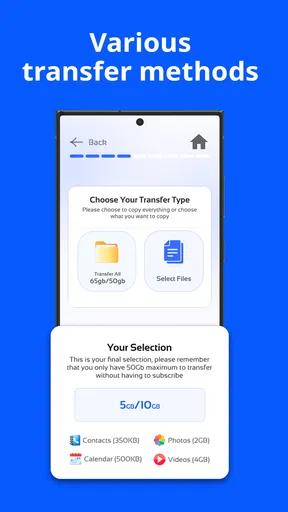
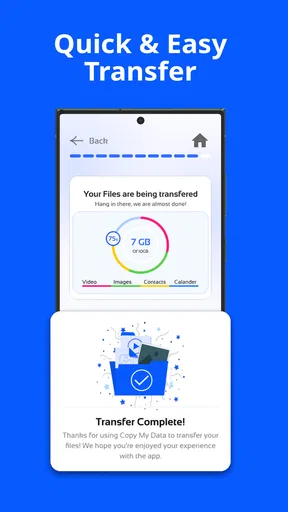
 Analysis by AppCompare
Changing phones often means discovering that your photos, contacts and calendar are scattered across several places, while the new device sits waiting to be set up. I like the idea behind Copy My Data: it focuses on the practical chore of moving selected everyday information from one phone to another, rather than asking you to learn a larger backup system. That makes it most useful when you want a direct handoff and would rather not sort through cables or extra software.
A focused tool for the phone-switching moment
Copy My Data is a free tools app from Red Sky Labs, and its appeal is its narrow purpose. It has an average rating of 4.3 from around 252,000 ratings, with more than 50 million installs. Those figures suggest that many people turn to it for the same familiar problem: getting useful personal data onto a replacement phone without making migration a project of its own.
The key trade-off is that a focused transfer app is not the same thing as a complete phone backup. It can help move the types of content presented in its transfer flow, but I would still treat a phone’s built-in setup and backup options as important, especially if you need to preserve app settings, messages or other material beyond contacts, calendar events, photos and videos. For a one-time move of those essentials, the smaller scope can be an advantage; for a full device copy, it may not be enough on its own.
Before you begin, make the handoff easier
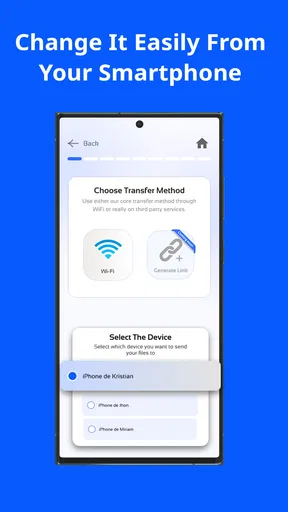
Both phones need to be available at the same time and connected to the same Wi-Fi network. I would install and open the app on each device before starting to select content, then keep both phones nearby and awake while they establish the transfer. That simple preparation avoids the common frustration of completing a step on one phone and then having to find the other device or reconnect it.
It also helps to decide what you actually need on the new phone before you start. If you are mainly trying to bring over contacts and calendar events, there is little reason to add a large photo collection to the same session. Separating essentials from a bulky media transfer makes it easier to spot whether the important information arrived, and gives you a sensible way to retry a narrower selection if anything interrupts the process.
Where a direct transfer fits best
A realistic use is replacing a phone before a commute or a busy workday. You can move your contacts and calendar events first, check that the people and appointments you rely on are present, and then handle photos and videos when you have time to leave both devices connected. That order is more practical than treating every file as equally urgent: a missed appointment can matter immediately, while a photo library can usually wait until the transfer has a stable stretch of time.
This is also a reasonable option for someone who does not want to sign into a cloud service on both devices just to move a few categories of content. The same-Wi-Fi approach gives the transfer a clear, device-to-device feel. Still, I would not assume it replaces cloud backup: a direct handoff helps with the current switch, whereas a backup can be valuable later if the phone is lost or damaged.
Worth Reading Before You Choose

Flipboard Shows What News Apps Must Do Beyond the Feed

Switching to Android Auto Means Rethinking Your Driving Routine

Google Calendar Makes a Crowded Week Easier to Manage

Ludo King Makes the Most of the Minutes Between Plans

Baby Panda World Brings Quick Play to Modern Phones, but Its Game Library Feels Busy

ESPN’s Live Game View Makes Following Close Games Easier
How it compares with built-in migration
Phone makers’ migration tools are often the better first choice when both devices belong to the same ecosystem or when you want the broadest possible setup transfer. They may be integrated into the new phone’s initial setup, which can reduce repeated steps. Copy My Data is more appealing when your need is specifically to move its selected categories through a straightforward Wi-Fi process, or when you want a separate tool rather than relying on a larger setup flow.
Compared with manually exporting contacts, moving photos individually or rebuilding calendar information by hand, a guided transfer is plainly more convenient. The important distinction is scope: if you expect applications, settings and every piece of phone content to appear exactly as before, check the built-in migration route first. I see this app as a useful bridge for everyday personal data, not a guarantee that two different phones will become identical.
Small checks that can save a second attempt
Before starting a large transfer, check that the receiving phone has enough available storage for the content you intend to move. A Wi-Fi connection is central to the process, so a busy or unstable network can make a transfer feel slower or less dependable; if the phones are competing with other heavy network use, waiting for a quieter moment is a sensible choice. Keeping the devices close together is also a practical way to avoid needless connection uncertainty.
After the transfer, verify the result on the receiving phone rather than relying only on a completion screen. Open a few contacts, check an upcoming calendar event, and browse both recent and older items in the photo library. For videos, try opening a sample as well. This quick review catches the kind of issue that matters in daily use—an incomplete selection or media that has not landed where you expect—while both phones are still available for another attempt.
There is also a useful decision to make about duplicates. If the new phone already contains contacts or media from an earlier setup, check a few entries after moving data before repeating the transfer. A second pass may be helpful if something is missing, but repeating a broad selection without checking first can make the destination harder to organize. I would use a small, purposeful retry rather than starting over automatically.
Who will get the most from it
I would recommend it to people making a straightforward phone change who mainly care about contacts, calendar events, photos and videos, and who value a guided process over manual copying. It is especially suited to someone who finds device settings intimidating but can follow a short sequence on two phones. Its Everyone content rating fits that broad, practical audience, and the app is free to install, though it also offers in-app purchases ranging from $2.99 to $79.99 per item.
I would skip it as the only migration plan if you need a complete clone, have only one of the phones available, cannot use the same Wi-Fi network, or need to preserve a wider set of information than the transfer covers. In those cases, the phone maker’s migration tools, a cloud backup or a manual export may be a better match. The right choice depends less on which method sounds simplest and more on whether it includes the particular data you cannot afford to leave behind.
The app has been available since March 19, 2014, and its current version is 5.1.1, with support beginning at OS 7.0. That makes it worth checking compatibility on both the sending and receiving devices before planning around it, particularly if one phone is older. Its continued popularity is encouraging, but the most useful test is still whether the transfer categories match your needs and the two devices can stay connected through the process.
Getting Started: Is It That Easy?
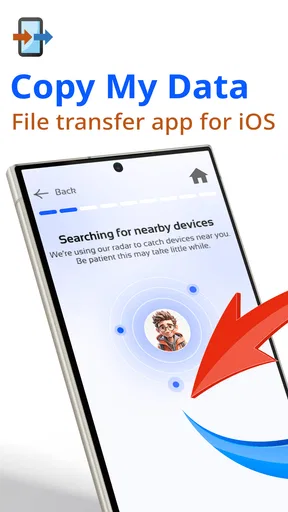
When you first open Copy My Data, you’re greeted with a simple, user-friendly interface. No frills, no confusing options—just a straightforward approach. It's like the app knows that you’re not here for a tech lesson; you just want your stuff moved over to your new device. You start by connecting both your old and new phones to the same Wi-Fi network. If you’ve ever connected to Wi-Fi, you’ll find this part a breeze.
Step-by-Step Transfer
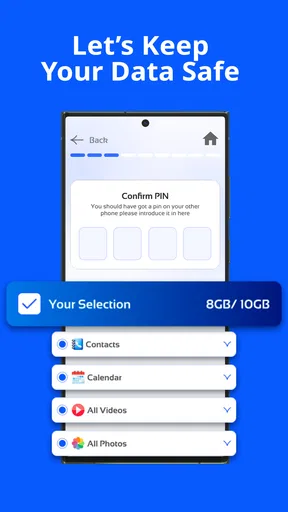
Once connected, the app prompts you to choose what data you’d like to transfer. You can select contacts, calendar events, photos, and videos. That's pretty much everything you need to get settled into your new phone without a hitch. I liked that it didn’t bombard me with too many options—just the essentials to make your transition smooth.
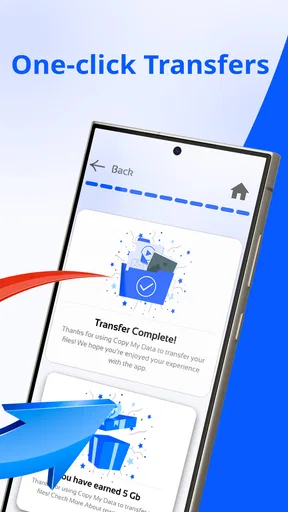
After selecting your data, the app generates a unique PIN for the transfer. Enter this PIN on the receiving device, and voila! The transfer begins. It's kind of like magic happening right in front of your eyes. The process is quick, and before you know it, all your precious data is waiting for you on your new phone.
Performance and Reliability
So, how does it perform? In my tests, the app handled the transfer without a hitch. Even with a large number of photos and videos, the process was seamless. It’s worth noting that the speed of the transfer will depend on your Wi-Fi connection, but even on a decent network, the transfer was completed faster than I expected.
One of the things I appreciated most about Copy My Data was its reliability. There were no unexpected crashes or freezes, which is exactly what you need when you’re trying to move your data. Knowing that I could trust the app to not lose any files gave me peace of mind.
Why You Should Give It a Try
If you’re someone who's not particularly tech-savvy, or you just want a hassle-free way to transfer your data, this app is a godsend. The no-nonsense design and step-by-step instructions make it accessible to everyone, regardless of how comfortable you are with technology.
Another great feature is that Copy My Data doesn’t require any cables or additional software. Everything happens wirelessly and efficiently. It’s one less thing to worry about when you’re already dealing with the excitement (or stress) of a new phone.
Final Thoughts
All in all, the Copy My Data app delivers exactly what it promises—a simple, effective way to transfer your data. It’s a small app, but it packs a punch when it comes to functionality and ease of use. If you’re switching phones, I highly recommend giving it a go. It takes the headache out of moving your digital life to a new device, and that’s something we can all appreciate.
So, next time you find yourself with a brand-new phone and the daunting task of moving your data, remember that Copy My Data has got your back. It’s like having a tech-savvy friend in your pocket, ready to help at a moment’s notice!
Pros
- Easy to use interface for quick transfers.
- Supports both iOS and Android platforms.
- No need for cables or complex setups.
- Transfers contacts
- photos
- and more.
- Fast transfer speeds for large files.
Cons
- Limited to devices on the same Wi-Fi.
- No cloud storage integration available.
- Cannot transfer apps or app data.
- Occasional connection drops reported.
- Lacks advanced security features.
FAQs for Copy My Data: Transfer Content
What is Copy My Data and how does it work?
Copy My Data is an app designed to simplify the process of transferring contacts, calendars, photos, and videos from one device to another. It uses Wi-Fi to establish a secure connection between your devices, ensuring data is transferred quickly and safely without the need for cables or additional software.
Is Copy My Data compatible with all devices?
Copy My Data is compatible with both Android and iOS devices, making it versatile for users switching between these platforms. However, it’s important to ensure both devices are connected to the same Wi-Fi network and are running a compatible version of their respective operating systems for optimal performance.
Is my data secure when using Copy My Data?
Yes, Copy My Data prioritizes user privacy and security by using a secure Wi-Fi connection for data transfer. This method ensures that your information is not sent over the internet, reducing the risk of data breaches during the transfer process. Always ensure you are on a trusted network when using the app.
What types of data can I transfer using Copy My Data?
The app allows you to transfer essential data such as contacts, calendar events, photos, and videos. It is designed to facilitate a smooth transition between devices without losing important personal information. However, it does not support the transfer of apps or app data.
Are there any costs associated with using Copy My Data?
Copy My Data is free to download and use, making it an accessible option for anyone needing to transfer data between devices. There are no hidden fees or in-app purchases, allowing users to utilize its full range of features without incurring additional costs.


